Removing redundant animation data channels
Whether importing animations from a content creation tool or creating them in Kanzi, animations sometimes contain data channels that do not animate anything. For example, when you add a keyframe for a transformation by dragging the value to the animation clip editor, the values are added for all data channels, even if they have not changed from the previous values.
Because sometimes even static values (data channels without any keyframes) contain valid information and are needed, consider cleaning up unnecessary animation information on a case by case basis.
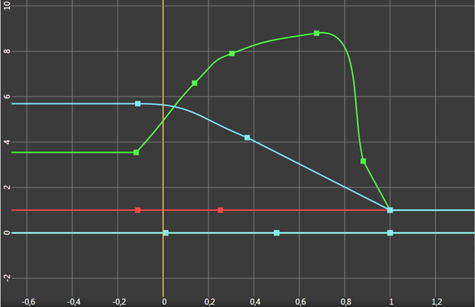
To remove redundant animation data channels:
- In the Library select Animations > Animation Clips and select your animation clip.
- Right-click the animation for which you want to remove redundant animation data channels and select Delete Animations with One or Zero Effective Keyframes.
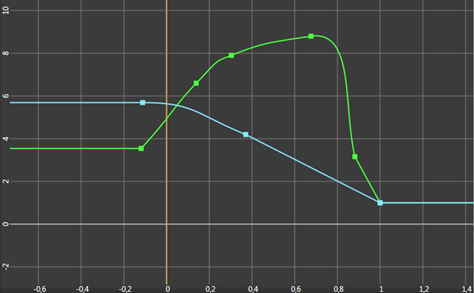
The following figure shows the example animation after removing animation channels without effective animations.
See also
Removing redundant keyframes
Measuring the performance of your Kanzi application
Best practices
Open topic with navigation